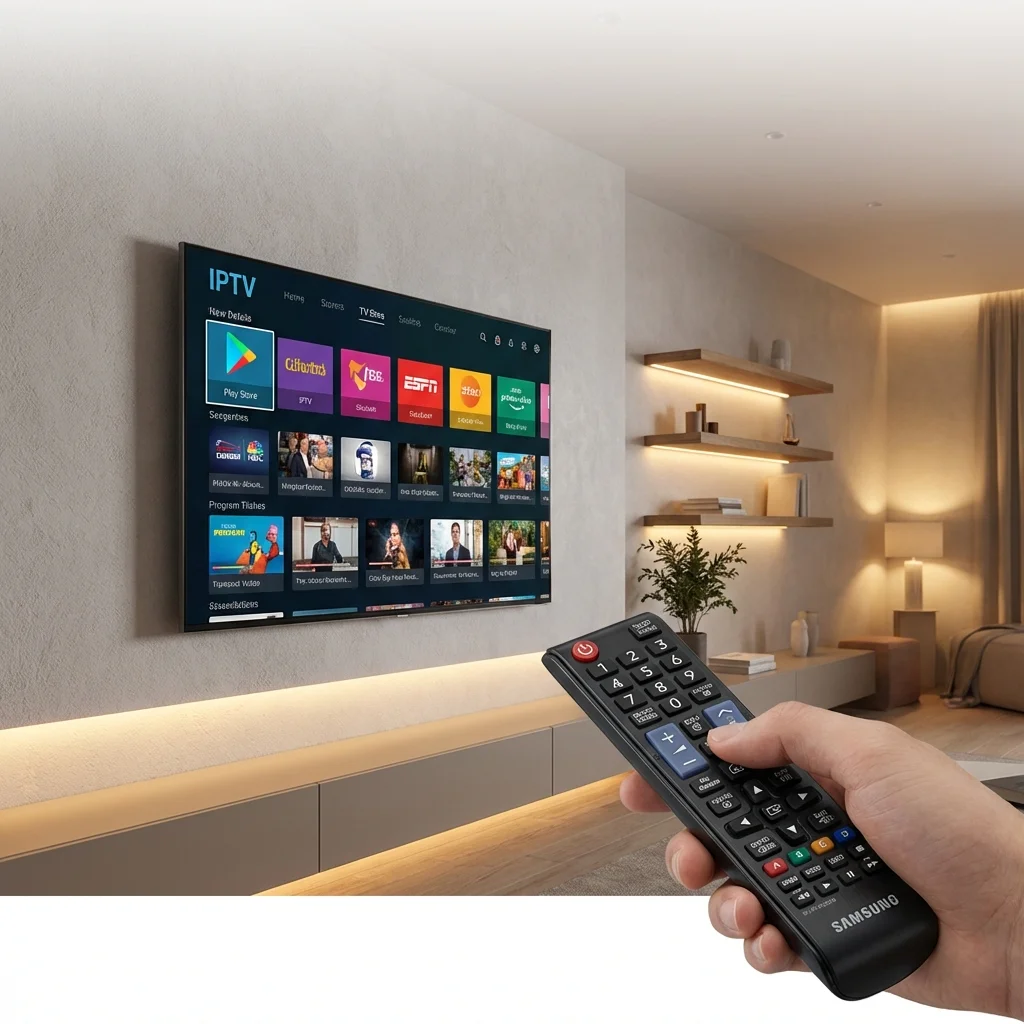
Why Samsung Smart TVs Excel for IPTV
Samsung's Smart TV lineup has become a favorite platform for IPTV streaming thanks to its vivid QLED and Neo QLED displays, powerful Tizen operating system, and seamless app ecosystem. Whether you own a 2017 model or the latest 2026 flagship, setting up IPTV on your Samsung television is a straightforward process that takes just a few minutes.
What You Need Before Starting
- Active IPTV subscription — Get instant access by subscribing to Sonix IPTV
- Samsung Smart TV (2017 or newer models provide the best experience)
- Stable internet connection — 25 Mbps minimum for HD, 50 Mbps recommended for 4K streaming
- Your IPTV service credentials — M3U playlist URL or Xtream Codes API login (provided after purchase)
Method 1: Smart IPTV Application
Step 1: Download Smart IPTV
Open the Samsung App Store on your television, search for "Smart IPTV" (also known as SIPTV), and install the application. This is one of the most user-friendly IPTV players available for Samsung's Tizen platform.
Step 2: Note Your TV's MAC Address
Launch the Smart IPTV app. On the welcome screen, you will see your TV's MAC address displayed. Write this down or take a photo — you will need it for the next step.
Step 3: Upload Your Channel Playlist
Using a computer or smartphone, navigate to siptv.eu/mylist. Enter your TV's MAC address along with the M3U playlist URL provided by Sonix IPTV after your purchase. Click "Send" and wait for the confirmation message.
Step 4: Restart and Start Watching
Return to your Samsung TV, completely close the Smart IPTV application, then reopen it. Your full channel list should now appear, organized by category. It may take 30–60 seconds for the initial load depending on the total number of channels.
Method 2: IPTV Smarters Pro via Xtream Codes
Step 1: Install IPTV Smarters
From the Samsung App Store, download and install IPTV Smarters Pro. This application supports the Xtream Codes API, which offers a more dynamic and feature-rich interface than M3U playlists.
Step 2: Authenticate with Xtream Codes
Select "Login with Xtream Codes API" and enter the following details:
- Display Name: e.g., "Sonix IPTV"
- Username: (provided by Sonix IPTV)
- Password: (provided by Sonix IPTV)
- Server URL: (provided by Sonix IPTV)
Tap "Add User" and allow 30–60 seconds for the channel database to synchronize.
Optimizing IPTV Performance on Samsung TVs
- Use a wired Ethernet connection: Wi-Fi is convenient but Ethernet provides a more reliable, higher-bandwidth link — critical for 4K content
- Close background applications: Free up system resources by shutting down apps you are not using
- Select the correct stream quality: If your bandwidth is limited, switch to FHD instead of 4K to avoid interruptions
- Clear the app cache periodically: Navigate to Settings → Support → Device Care → Manage Storage to free up memory
- Connect through a VPN: If your ISP throttles streaming traffic, a VPN can significantly improve performance
"Watching Sonix IPTV on my Samsung 65-inch QLED is an absolutely stunning experience. The 4K sports channels look better than anything I ever had with cable, and the setup took less than five minutes." — Sonix IPTV Customer
Wrapping Up
Samsung Smart TVs offer one of the most seamless IPTV experiences available in 2026. With either Smart IPTV or IPTV Smarters Pro, you can be streaming within minutes. Paired with Sonix IPTV and its library of 25,000+ live channels and 35,000+ on-demand titles, your Samsung TV transforms into the ultimate home entertainment hub.